Introduction
AI Print Failure Detection continuously analyzes in-process builds and recognizes visual failure patterns, including 'spaghetti' formation. Instead of discovering a failure after the print is complete, the system evaluates image data in real time to determine whether the build’s structure is developing as expected.
Each Element captures an image of the build area once per minute using its onboard webcam. Images are transmitted to Array, where a trained computer vision model processes them locally. The AI model evaluates whether spaghetti-like strand formation or abnormal extrusion patterns are present. If a print failure is detected, Element can pause the print and/or notify the user.
This article shows how to enable AI Failure Detection on Array and use it to stop spaghetti failures as they occur, safeguarding your equipment and maximizing uptime.
-
-
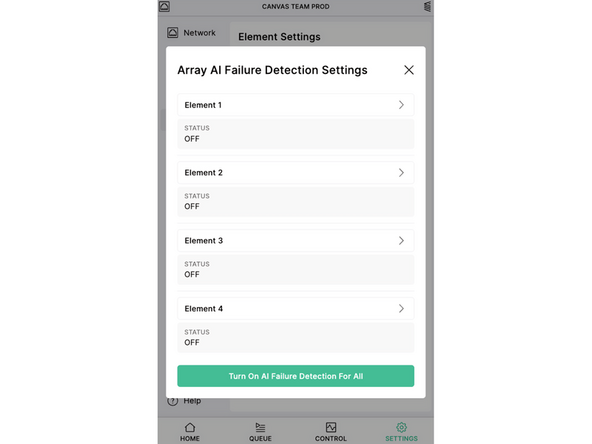
On Array's front screen, navigate to Settings > Element > AI Failure Detection
-
Press 'Turn On AI Failure Detection For All', or alternatively, only enable AI failure detection on selected Elements.
-
-
-
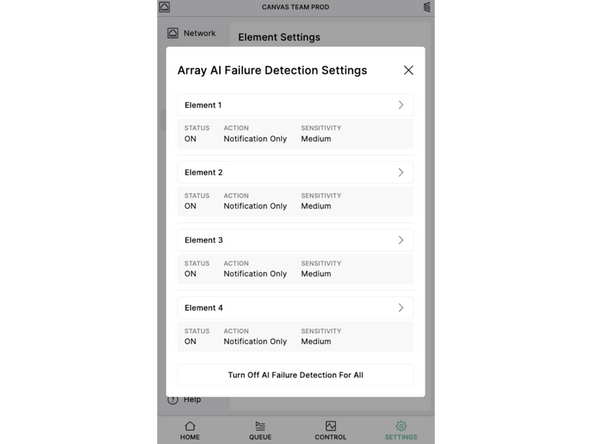
After enabling AI failure detection, you can select the sensitivity and desired action for each Element
-
We typically recommend leaving sensitivity at 'Medium'. This can be increased if you find spaghetti is not being detected in certain cases
-
For the resulting action when a failure is detected, you can choose 'Notification Only' or 'Notification and Pause'. If you choose the former, an on-screen error message will be displayed, but the print will continue. If you choose the latter, the print will also pause
-
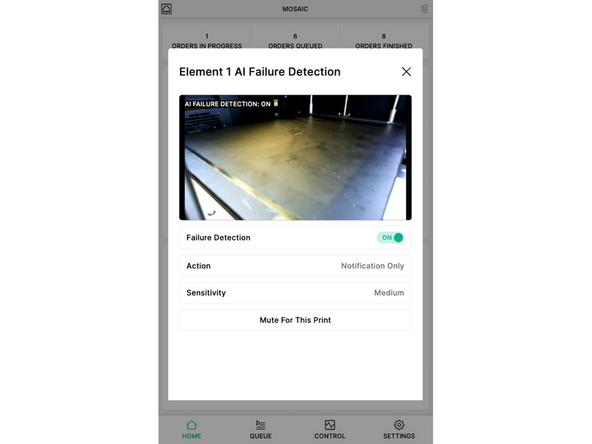
While a print is active, you can also use the 'Mute For This Print' button to turn off AI failure detection for the current print only
-
-
-
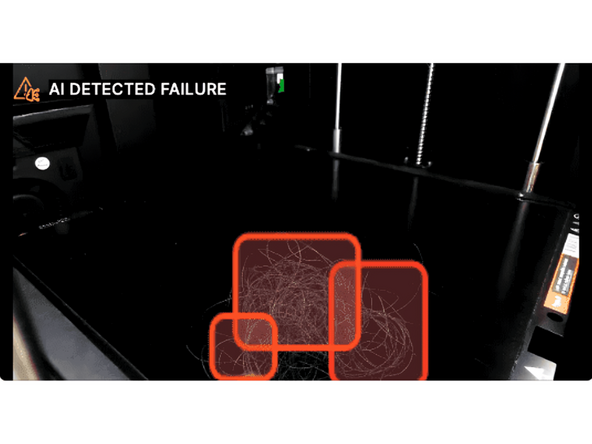
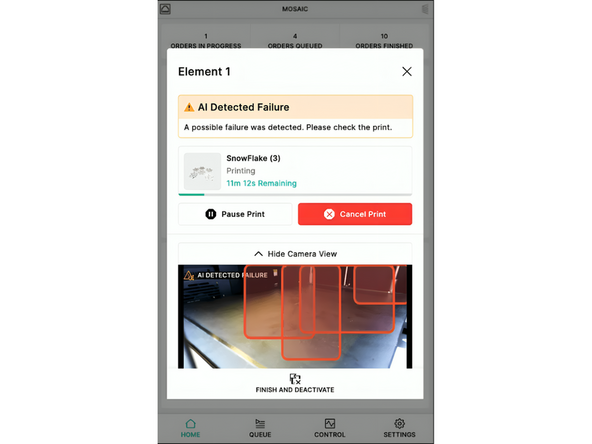
When a print failure is detected, open the Element modal on screen to see the affected areas of the print. You can choose to cancel the print from this screen
-
Ensure the filament pathway is clear before starting another print, and reach out to support@mosaicmg.com with any questions or concerns
-
Taking a picture of the print failure and sharing your Canvas project will help our team to find the cause of the issue
-

Team
